

Initial Registration - CGM eMDs Hosting Open Text Multi-Factor Authentication
Initial Registration - CGM eMDs Hosting Open Text Multi-Factor Authentication
· Go to the following URL to set up your MFA: It is recommended that you save this link in case you need to setup new or modify your existing MFA method.
https://compugroupmedicalinc.cyberresprod.com/
· Enter your existing username without the emds\ (Ex: SS123.Test)

· Enter same password

· Next, you will need to select your MFA method for signing in. Click on “+” button
(add) to add your preferred method.
· Any Method will redirect you to this page for every method you setup

· Select the available methods that work best for you. We recommend setting up at least two methods, so you have backup in case one is unavailable.

Please refer to the steps below on how to set up MFA for each method you select.
Email OTP (One Time Password) Method
· Enter your preferred email address, then click Save

· To make sure it’s working, click on Test Method

· Enter the code you received via email, then click Test.

· Once the code is entered, you should see Test Successful. Click OK to continue.

TOTP (Time-Based One Time Password) Method for App Authenticator
· Use an authenticator app of your choice (e.g., Google Authenticator, Microsoft Authenticator).
· Enter the name of the app you selected.
· Click Get QR Code.
· Scan the QR code using the authenticator app on your device and complete the setup.
· Click Save.

· Click on Test Method to verify the setup.

· Enter the code from your app authenticator, then click Test.

· Once code is entered, you should see Test Successful, then click OK.

Security Questions Method
· Security Questions are pre-set, and answers must be at least 5 characters long.

· You will see this error if your answer doesn’t meet the minimum character requirement.

· Click on Test Method to test.

· You are required to answer at least one of the questions, then click Test.

· Once answered, you should see Test Successful, then click OK.

SMS OTP method
• Enter your phone number if you would like to receive OTP via text message, then click Save.

• Click on Test Method to test.

• Enter the code you received on your device, then click on Test.

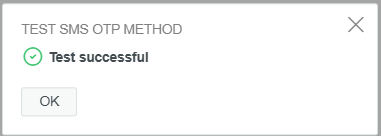
• Once entered, you should see Test Successful, then click OK.
Smartphone Method – Push Notification
· This requires downloading the NetIQ Advanced Authenticator app from App store or Google play.
· Click on Get QR Code.
· Scan the QR code using the authenticator app on your device and follow the setup instructions.
· Click on Save.

· Click on Test Method to test.

· Open the NetIQ authenticator app and click Accept on your device.

· Once accepted, you should see Test Successful, then click OK.

Key Fob – Hard Token
· Display Name: Name under assigned user account
· Service Name: Name it as Hard Token or Key Fob
· Expand the OATH Token dropdown
· OATH Token Serial Number: Obtain serial number from Key Fob
· One-Time Password (OTP): Enter six-digit number from Key Fob
· Click Save

· (NOTE: If Key Fob is shared, please contact support to add multiple users to a token.)
As an alternative, if sharing a key fob is not ideal, you may use the newly added Email method, especially if your clinic has a no phone policy.
· After selecting your preferred MFA method, your registration is complete!