

How to Log In to the eMDs Hosting Environment
Applies to: All users connecting to the eMDs hosted environment from a Windows environment
Last updated: [2/2026]
Author: [Julio H./]
Overview
This article explains how new users log in to the eMDs hosting environment from a Windows computer.
Prerequisites
Before you begin, you must have:
-
Account Information (from IT or eMDs hosting)
- Username (example: SS###.username1)
- Temporary or initial password
- Multi-factor authentication already setup (Not covered in this article)
-
Network Access
- Stable internet connection
- If required by your organization: VPN access or instructions to connect from the office network only
- Install Microsoft Remote Desktop from the Mac App Store (MAC ONLY)
Step 1 – Log into eMDs website
- Open a supported web browser (Chrome/Edge).
- Go to emdsrds.emds.com
- Enter your SSID/Username

- Select and complete your prefered MFA option

- Enter your 20+ character password
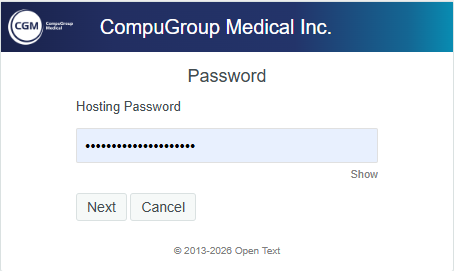
Step 2 – Select your server and login
-
Select your server (Note: Most users will only have one of the options shown below)

-
Selecting the server will download the Microsoft RDP connection file. Open the file from your downloads.

-
Enter your username/password and click 'OK'. NOTE: this is the only screen where you will enter 'emds\' before your username.
NOTE: If the below box shows a different username than your own, you must select "Use a different account" to continue logging in.
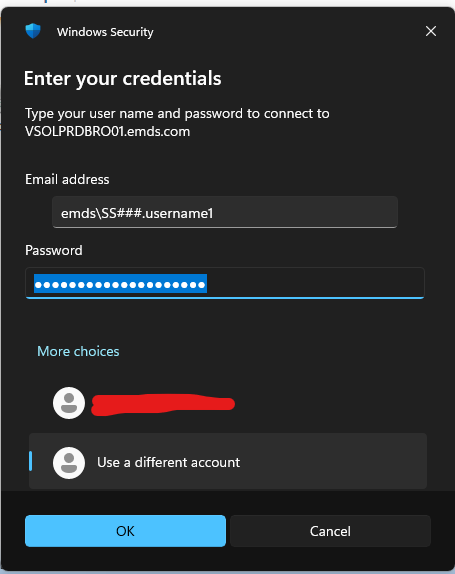
NOTE: After you log in the first time, depending on local settings you username may be pre-populated for future logins.
Step 3 – Log In with Your Username and Temporary Password
-
Select and Complete your prefered MFA Option

-
Congradulations, you have successfully logged into the eMDs hosting environment!

Step 4 – Log Off Safely When Finished
To avoid issues with locked sessions and to protect patient data, always sign out properly.
-
Exit the eMDs application:
- Use File → Exit, Log off, or click the X to close the program.
-
Log off from the remote desktop:
- Click the Start button on the remote desktop.
- Select Sign out or Log off.
- Alternatively, select the gold 'Log Off' key icon on the desktop
-
Once the session closes, the Remote Desktop window will close or return to the connection screen.
-
If you use a VPN, disconnect from the VPN after your remote session ends.
Do not simply close the laptop lid or shut down your local computer without signing out of the remote desktop.
Troubleshooting
1. “The username or password is incorrect”
- Verify:
- Caps Lock is off.
- Num Lock is set as needed (for numeric keypad).
- Make sure you are using:
- The correct username format (SSID\username1 or
username@yourclinic.local, if required).
- The correct username format (SSID\username1 or
- If you’ve tried more than 3-5 times, your account may be locked.
Contact the eMDs IT support at 803-599-6246 EXT 2 > 2 > 1 or as a ticket via the support portal at portal.cgm.com.
2. The login screen doesn't advance to the password prompt
- Your Multifactor Authentication may not be setup yet. Please refer to the related article to set that up here.
3. Unable to Connect to the Remote Server
- Confirm your internet connection is active (test another website).
- If you must connect via VPN, ensure:
- You are connected to the VPN before starting Remote Desktop.
- If you receive specific errors (for example, “Remote Desktop can’t connect to the remote computer”), note the error and contact eMDs IT support at 803-599-6246 EXT 2 > 2 > 1 or as a ticket via the support portal at portal.cgm.com.
4. Session is Frozen or Very Slow
- First, try closing the eMDs application inside the remote desktop and re-open it.
- If the entire remote desktop is frozen:
- Close the Remote Desktop window.
- Wait about 30-60 seconds.
- Reconnect to the hosting environment
- If performance issues continue, contact eMDs IT support at 803-599-6246 EXT 2 > 2 > 1 or as a ticket via the support portal at portal.cgm.com and report:
- Time of day
- What you were doing when the issue occurred
- Any error messages
When to Contact Support
Contact eMDs IT support at 803-599-6246 EXT 2 > 2 > 1 or as a ticket via the support portal at portal.cgm.com if:
- You never received your username or temporary password.
- Your account is locked or you cannot change your password.
- You cannot connect to the remote server at all.
- eMDs does not appear on the remote desktop or will not launch.
- You experience repeated disconnects, freezing, or performance problems.
Please provide:
- Your full name
- Username (if known)
- A brief description of the problem
- Any exact error messages shown on screen