

Store
Overview
Note: The menu and its features described in this article may not be available to all users.
The STORE menu provides you with an ordering functionality. It navigates you to a webshop where you can buy additional products independently.

Filtering by Categories
The product list in the Store can be filtered by product category. For this, click on the available product categories on the left.

To remove the filter, click on the 'x'.

Searching for a Product
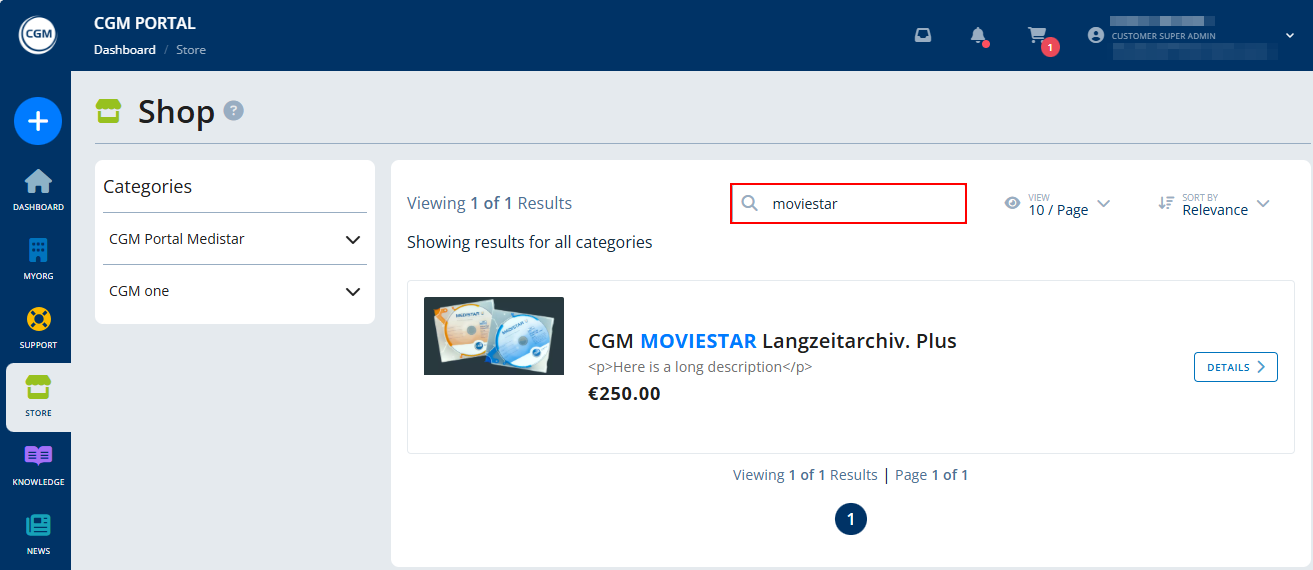
You can search for a specific product. For this, enter a search term (i.e., Product Name or Product Description) into the search field. The search is not case-sensitive. That means, it does not matter if you use upper- or lower-case when entering your search term.
Then press the "Enter" key.
Adjusting the number of entries per page
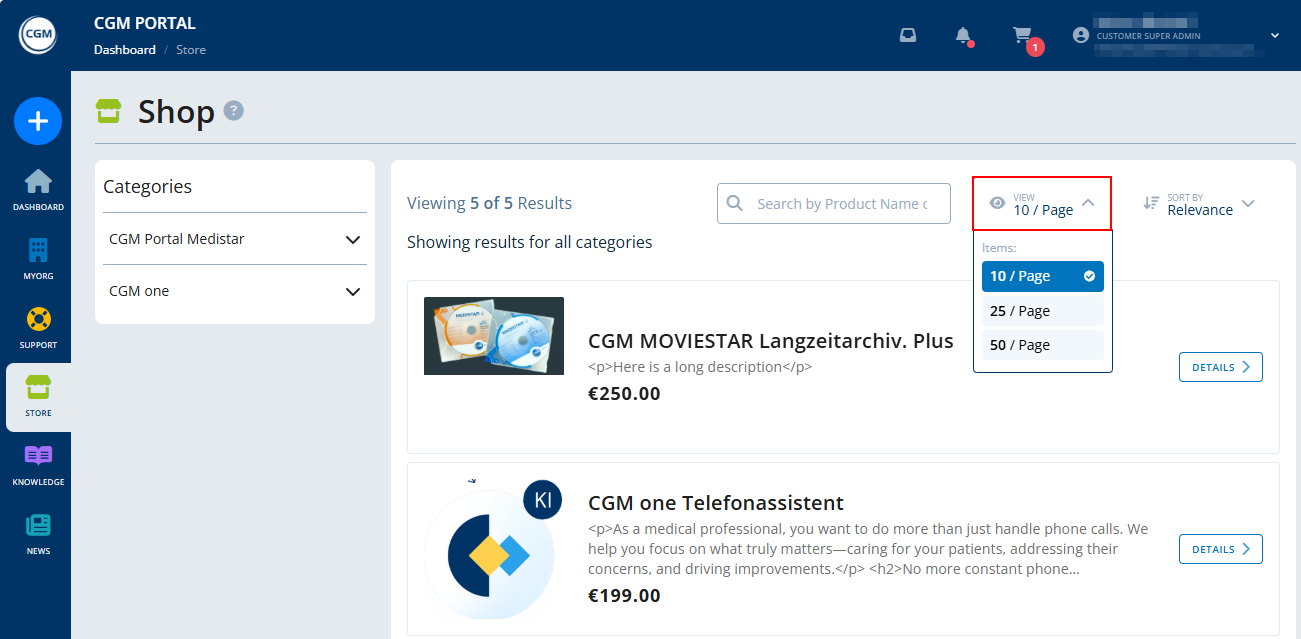
If you want to adjust the number of entries that should be displayed on one page of the list, you can click on the "View" button and select from the available options.
-
10 entries per page
-
25 entries per page
- 50 entries per page
Sorting the product list
For a better overview, you can also sort the list of products by the following values. For this, click on the "Sort By" button and select one of the available options:
- by Relevance
- by Top Rated
- by Name (ascending) - in alphabetical order
- by Name (descending) - in non-alphabetical order
- by Price (lowest first)
- by Price (highest first)

Product Details
If you want to display the details of a product, click on the respective product.
The product details page provides the following information.

| Item | Description | |
| 1 | Product name | |
| 2 | Product description | |
| 3 | Product ID | |
| 4 | Product type (Service, Subscription, or Single License) | |
| 5 | Product list price | |
| 6 | Quantity | |
| 7 | Product images | |
| 8 | Included products that will be bought together with the selected product | |
|
Complementary Products |
If complementary products are available, this is indicated by a small called Frequently bought together with pop-up on the right side.
You can click the products in this section. This will direct you to the details page of the complementary product. You can also click Add to Cart to directly add the complementary product to the Shopping Cart. |
|
|
Similar Product Suggestion |
If similar products are available, this is indicated by an Explore Alternatives button on the right side which navigates to the Similar products section at the bottom.
You can click the products in this section and will be directed to the details page. You can also click Add to Cart to directly add the alternative product to the Shopping Cart. |
|
|
Travel Costs |
If a product is travel fee-relevant, this is indicated by a travel fee indicator and the travel fee.
When you add a travel fee-relevant product to the Shopping Cart, the travel fee is added as a separate product. Travel fees are added only once, even if you add multiple travel fee-relevant products to the cart. Travel fees are included as part of the "one-time subtotal". The travel fee is also displayed In the Checkout in the Order Overview section. After completing the ordering process, the shipping fee is also displayed in the Order Details. |


Ordering a Product
1. To order a product, navigate into the product details.
2. Select the required quantity for this product by clicking the '-' or '+' button on the right side.
3. Click Add To Cart to add the product to your Shopping card. This is indicated by the Shopping cart icon and a short message at the top.
If you want to buy this product only, click Buy Now. In this case, you will be directed to the first page of the Checkout process. Otherwise, continue with your shopping.

4. If you have added all products you want to buy, click on the Shopping cart icon at the top and select Checkout.

5. The Checkout process consists of several steps.
On the first screen, you can check the details of your order:
Address step
|
Shipping method |
If available
|
|
Shipping fee |
If applicable If a product is shipping fee-relevant, the shipping fee for your order is displayed in the Order Overview section as well as in the Address and Payment Frequency steps of the Checkout allowing you to understand the full costs of your purchase. After completing the ordering process, the shipping fee is also displayed in the Order Details. The shipping fee is applied once per order. |
|
Travel fee |
If applicable If a product is travel fee-relevant, the travel fee for your order is displayed in the Order Overview section. Here, they are included as part of the One-Time Subtotal. After completing the ordering process, the travel fee is also displayed in the Order Details. |
- Order overview, including
- products
- product prices
- quantity
- shipping or travel costs, if applicable
- one-time and recurring prices
- total price

Payment Frequency step
Proceed by clicking Proceed to next step.
If a payment provider is supported, you will be able to select your preferred payment frequency (monthly or yearly) on the next screen.
Otherwise, this step is skipped and payment is done via SEPA or Invoice.

Terms step
Proceed by clicking Proceed to next step.
On the next screen, you agree with the General Terms and Conditions. Activate at least the first checkbox in order to proceed with the order process.

Payment step
By clicking Place Order, your order is completed. This might take a few seconds.
If a payment provider is supported, you can select your preferred payment method and enter your payment details on the next screen.
Otherwise, this step is skipped.

Click Pay to complete your order.
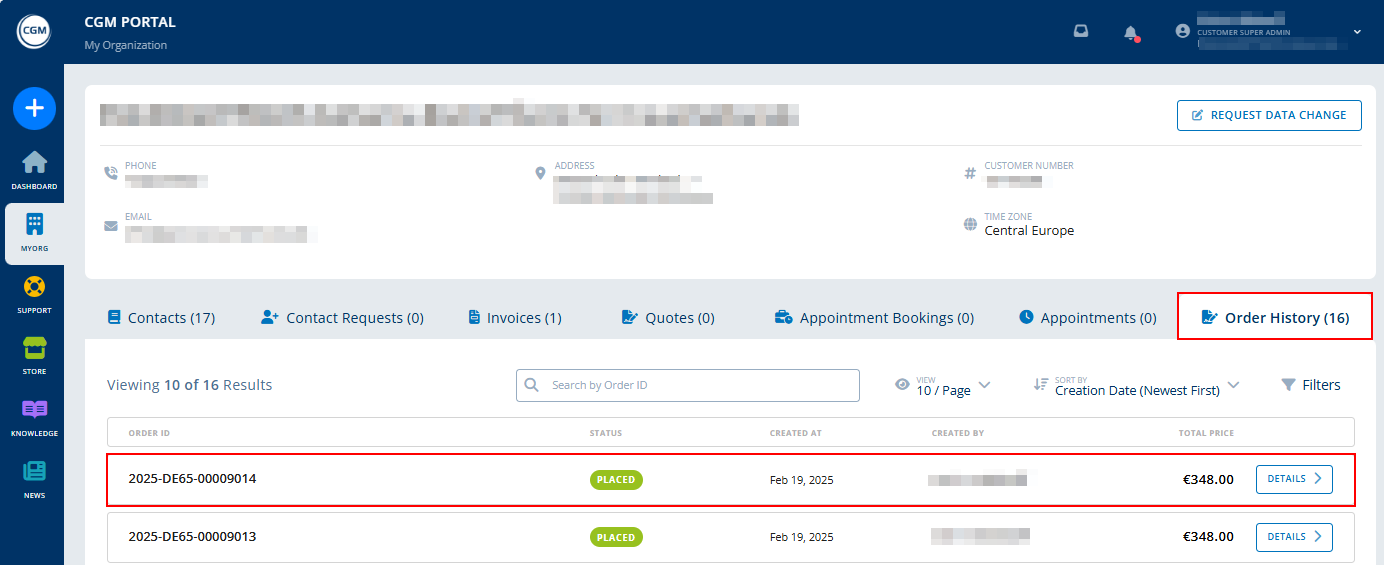
Once the order is completed, the Order Details are displayed. In addition, the order is available on the Order History tab in the MYORG menu.
Appointment Booking
In case a purchased product is relevant for an appointment booking, you will receive an Appointment Booking Request in your Inbox or via email to schedule an appointment.
This Appointment Booking Request is available on the Appointment Bookings tab in the MYORG menu.
Within the Appointment Booking Request details, you can then select a date and timeframe when the appointment should take place.
Once you have selected and saved a certain timeslot for an Appointment in the Appointment Booking Request, it is converted into an Appointment, which is displayed in the MYORG menu on the "Appointments" tab.