

Order History
Overview
If you have access to the Store menu, this Order History tab will be available in the MYORG menu.
It allows you to track your past orders from the Store menu, view detailed order information, and monitor the status of their purchases.
By providing a clear overview of previous transactions, you can easily reference your order history, improving transparency and self-service capabilities.
Access
In the CGM PORTAL, navigate to menu "MYORG", and click on the "Order History" tab.
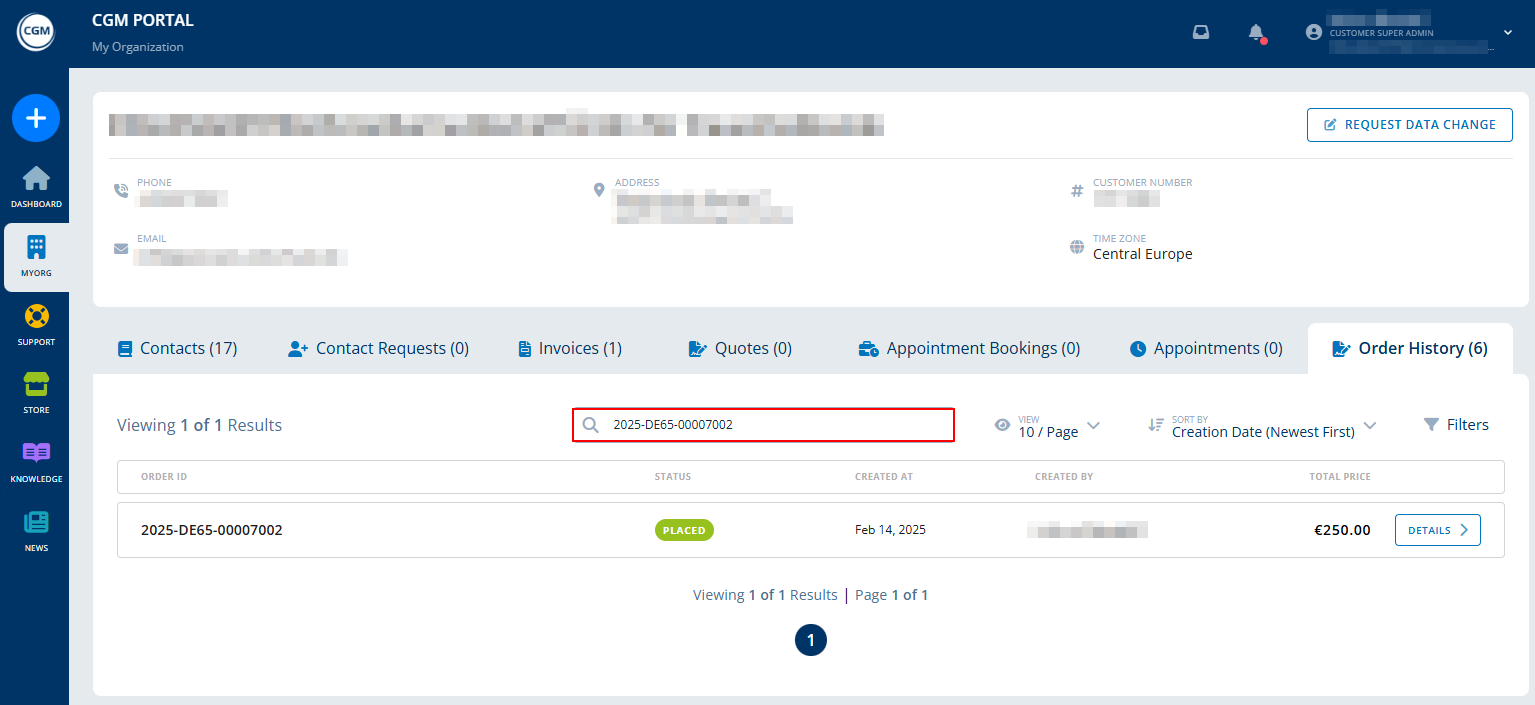
Here, you can see the following information:
- order status
- order ID
- creation date
- creator
- total price

Searching for orders
You can search for a certain order by entering the order ID into the search field and pressing the Enter key.
Adjusting the number of orders per page
Click on the "View" button to adjust the number of entries that should be displayed on one page of the list.
- 10 entries per page
- 25 entries per page
- 50 entries per page

Sorting the Order History List
Click on the "Sort By" button and sort the list of orders by
- Creation Date (Newest First)
- Creation Date (Oldest First)

Filtering the Order History List
Click the "Filters" button to sort the Order History list:
- By Status
- By Creator

Displaying Order Details
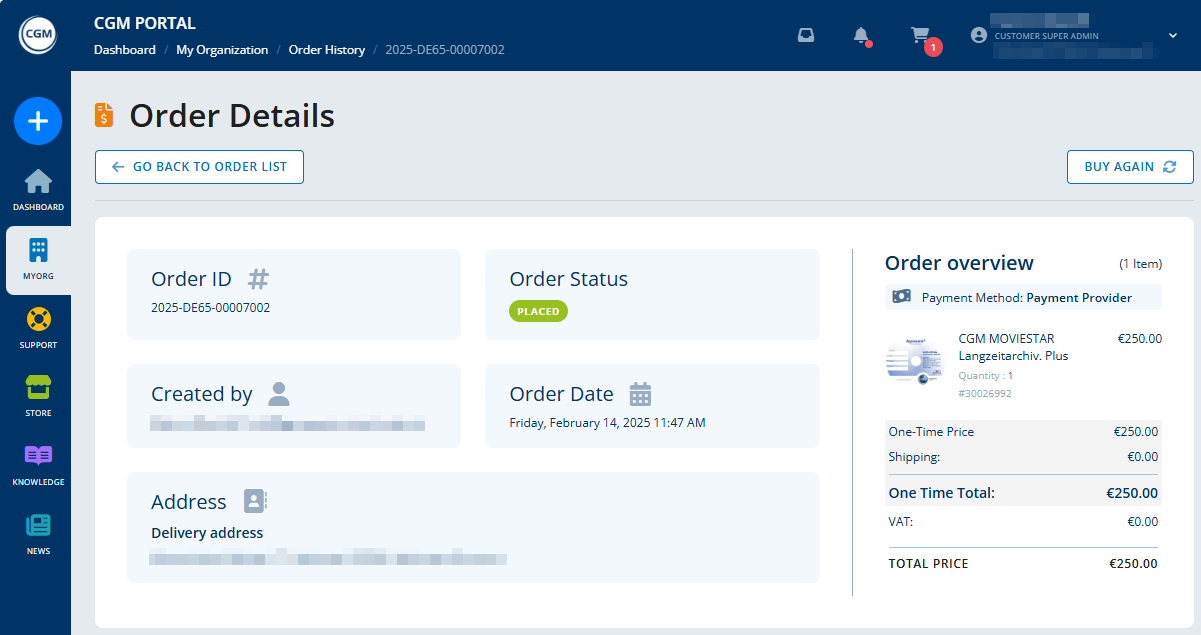
To display the details of an order from the Store click on the "Details" button.
Displayed information:
- Order ID
- Order status
- Creator
- Order date
- Delivery Address
- Order overview including
- payment method
- shipping costs
- VAT
- total price
- Image of product, if available
Buying a Product Again
If you want to buy a certain product again, you can navigate into an order and click the "Buy Again" button at the top on the right side of the order details:

The system will navigate directly to the checkout process of the Store, reducing the steps to buy a product again to a minimum.
