

Support Dashboard
Overview
The Support dashboard provides an overview of and access to Support Cases of the logged-on user created for the associated organization.
For this, two views, List View and Card Board, are available with slightly different features.
List View
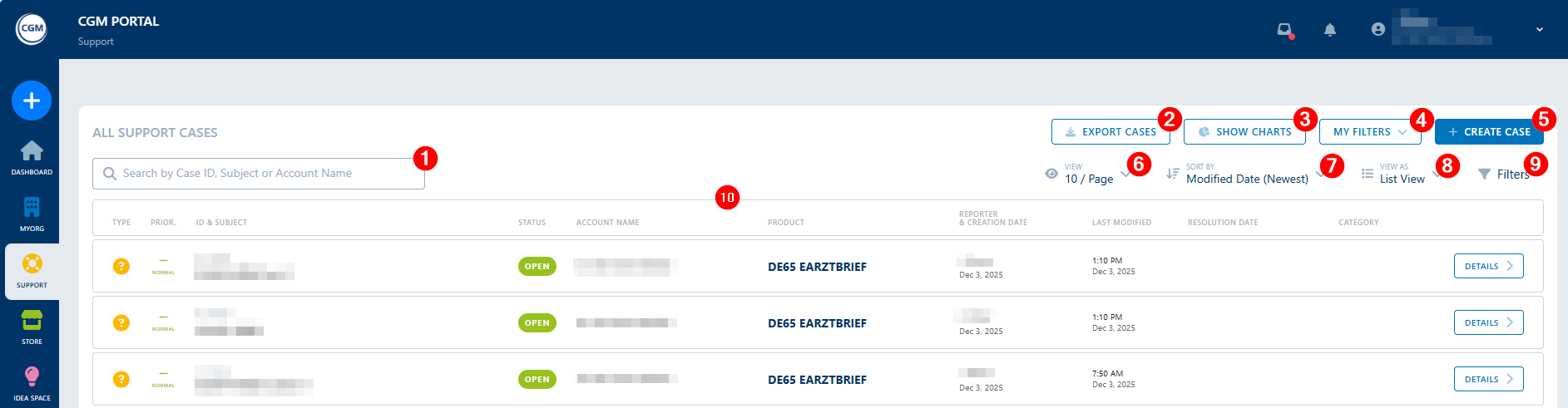
| Item | Name | Description |
| 1 | Search | The Search field can be used to search for a specific case, e.g., by entering the Case ID, Subject, or Account name. |
| 2 | Export Cases |
The Export Cases button is available in the List View only. It enables you to download a comprehensive report of all or individual cases with all comments in Excel format. The report provides them with key case information such as Case ID, subject, description, type, assigned agent, status, priority, categories, as well as creation and update dates. The export considers applied filters and the selected sorting so that only the filtered cases will be exported. The feature is optimized for large case volumes and complies with data protection and security standards. In addition, you can export a single case from within the Case Details by clicking Export. See also article >> Exporting Cases. |
|
3 |
Show Charts |
Displays the following charts: Cases By Status This pie chart displays the cases from the columns sorted by Status. If you click on a certain status in the chart, the system displays the list of cases in this status.
Cases By Priority This pie chart displays the cases from the columns sorted by Priority. If you click on a certain priority in the chart, the system displays the list of cases with this priority.
Note: Completed cases are excluded here. |
| 4 | My Filters | If you saved individual filters, you can select them here to apply them whenever needed. |
|
5 |
Create Case |
This button enables you to create, for example, a support case via a one-page Case Creation form. On the Case Creation form, you can also switch to the Support Wizard which guides you step by step through the case creation process, if needed. |
|
6 |
View |
You can use the View button to adjust the number of entries that should be displayed on one page of the list.
|
| 7 | Sort By |
You can sort the case list to either display the entries by
|
| 8 | View As | You can switch the view of the case overview between the List view or the Card Board (Kanban). |
|
9 |
Filters |
The Filters tab enables you to filter the Cases displayed in the columns by the available filter criteria. You can select more than one value in one drop-down list.
|
|
10 |
Case List |
Displays the list of all available cases, depending on the applied filters. |
Card Board View

| Item | Name | Description |
| 1 | Search | The Search field can be used to search for a specific case, e.g., by entering the Case ID, Subject, or Account name |
| 2 | Show Charts |
Displays the following charts: Cases By Status This pie chart displays the cases from the columns sorted by status. If you click on a certain status in the chart, the system displays the list of Cases in this status.
Cases By Priority This pie chart displays the cases from the columns sorted by priority. If you click on a certain priority in the chart, the system displays the list of Cases with this priority.
Note: Completed cases are excluded. |
| 3 | My Filters | If you saved individual filters, you can select them here to apply them whenever needed. |
|
4 |
Create Case |
Enables you to create a Case via a one-page Case Creation form. On the Case Creation form, you can also switch to the Support Wizard which guides you step by step through the case creation process. |
|
5 |
View As |
You can switch the view of the case overview between the List view or the Card Board (Kanban). |
|
6 |
Filters |
The Filters tab enables you to filter the Cases displayed in the columns by the available filter criteria. You can select more than one value in one drop-down list.
|
|
7 |
Kanban Board / Card Board |
This Kanban Board displays the latest updated cases categorized into 4 fixed status columns.
Each column displays the 5 last updated cases per status column. That means, a maximum of 25 cases can be displayed in all columns. By clicking a Case in a column, the system navigates into the Case details. Via the Show More link, additional cases with the associated status can be displayed. |