

Self-registration
Overview
There are two possibilities to add further contact persons (employees) of a customer account to the CGM PORTAL:
Either the Admin user of the account can add the employees (see article Adding a new Contact), or employees can register themselves for the CGM PORTAL.
Below, we describe how employees can register themselves.
How to register yourself (Selfregistration)
1. On the CGM PORTAL login page, click Not a CGM PORTAL user yet? Click here to register. You will be forwarded to the registration page (Register to CGM PORTAL).

2. On the next page, fill in the required data (your e-mail address, customer number, postal code).
Note: For a successful registration, the following requirements apply:
- You know your Customer Number and Postal Code. (Your customer number can be found on our quotations or invoices.)
- The combination of customer number and postal code must match the data in our system.
- Your e-mail address is not registered yet in our system.

3. Click Next.
4. On the next page, fill in your First Name and Last Name.

5. Click Register. If the registration was successful, a success message is displayed.

6. You will receive an email to confirm your registration. In the email, click Confirm.

7. On the screen, confirm your registration by clicking Confirm.

A success message will be displayed.

8. The Super Admin user of your company account is informed about your registration request.
Once the Super Admin user confirmed your request, you will receive an email to complete your registration.

9. In the email, click Confirm Email.
10. You will be forwarded to the Welcome page. Click Next.
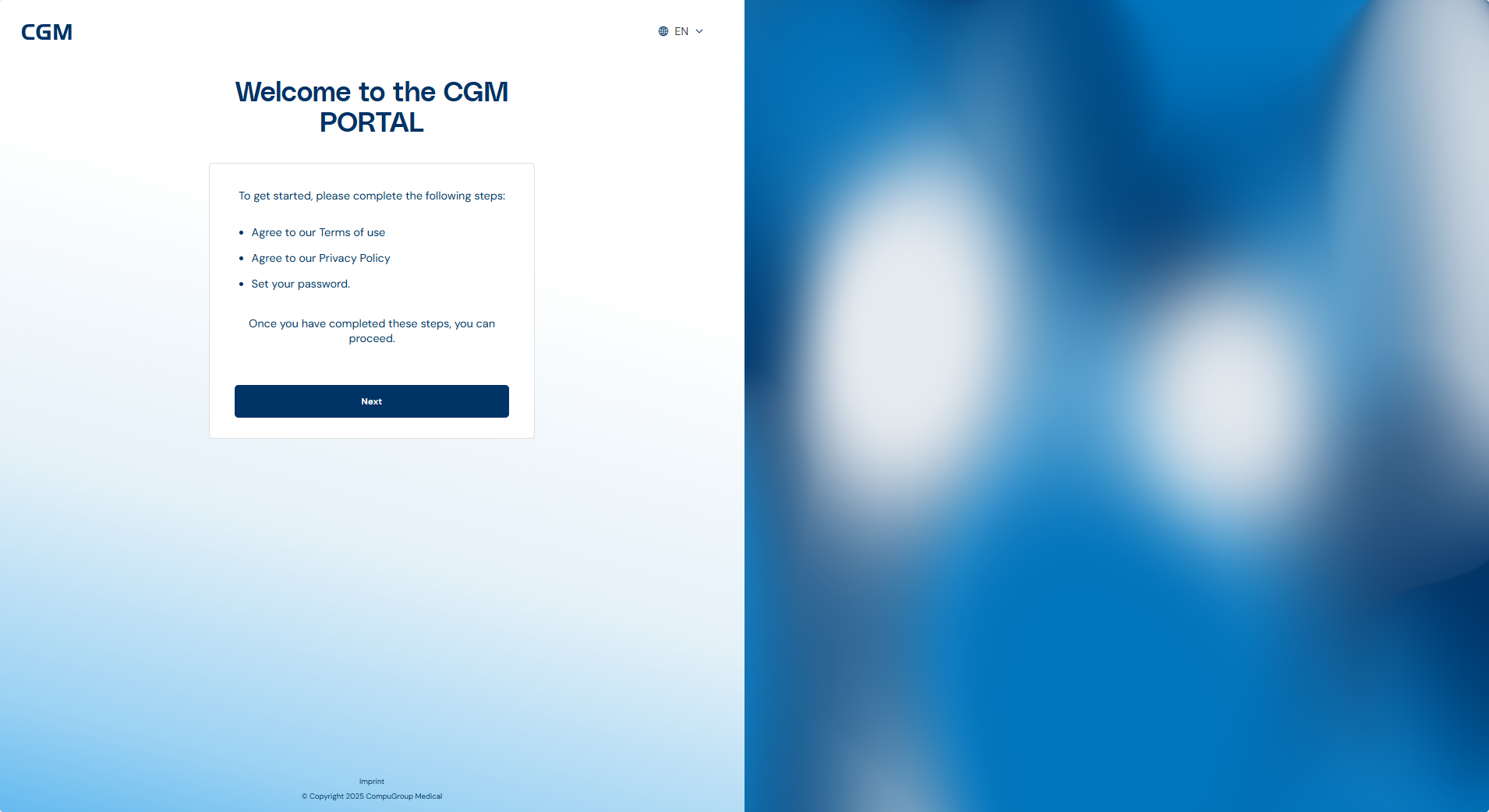
11. Accept the Terms of Use by clicking Confirm.

12. Agree to the Data Privacy Terms by clicking Confirm.

13. Set your password for your CGM PORTAL login.

14. Set up a multi-factor authentication method by following the instructions.

Example Authenticator App:


15. Accept the Data Privacy and General Terms and Conditions by
- activating the checkboxes
- clicking I Accept.

16. Optionally, you can give your marketing consent.

17. Once the registration is complete, you can log in to the CGM PORTAL by clicking to CGM PORTAL.
