

CGM Chatbot
Overview
Our secure CGM Chatbot shall assist you in case of questions/problems. You can search for the latest news, release notes, or updates, and even search for information relating to your product.
The language in the chatbot is based on the language setting in your profile.
Below, you will find the main features our CGM Chatbot offers:
CGM Chatbot – Features
Our secure CGM Chatbot is equipped with advanced features to elevate your interactions, ensuring seamless scalability and efficiency:
1. Login
With a click on the Chatbot icon in the bottom right corner, you will be automatically logged in and can use all chatbot functionalities.
2. Automatic recognition of customer and product
The CGM Chatbot automatically recognizes your user and the CGM products you have.

3. Product Selection
If you have more than one CGM product, you can select the product for which you need support.

4. Ask a Question
After selecting the relevant product, you can directly ask your questions about your CGM product or a specific issue.
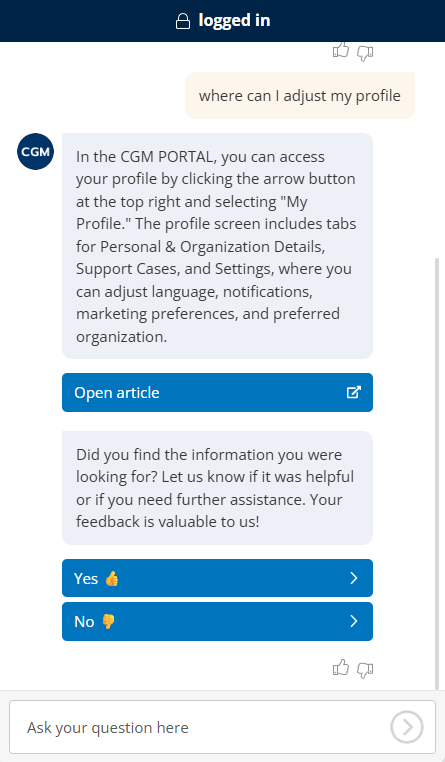
After entering your question, the chatbot will display articles from the knowledge base.
A click on the linked article will take you to the corresponding knowledge base article in the portal.

5. Important Updates / Latest News / Release Notes
In addition to questions about your CGM product, you can also request the following information:
Important updates:
The chatbot will display the 3 latest update articles (if available). Clicking on an article will direct you to the full article within the portal.
Latest News:
Display the 3 latest news articles (if available). Clicking on a displayed news article will direct you to the full article within the portal.
Release Notes:
Display the latest release notes for your CGM products. Clicking on a displayed release note will direct you to the release note article within the portal.

6. Feedback
The CGM Chatbot gathers your valued feedback. And we are using it to continuously optimizing your user experience.
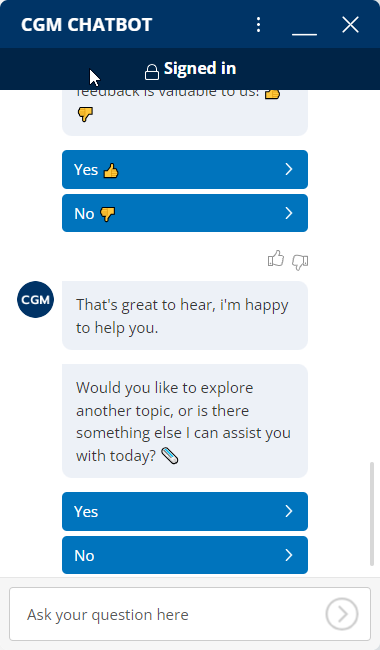

7. Ticket Creation
If our CGM Chatbot or support staff is unable to resolve your issue directly, you can have a ticket created immediately.
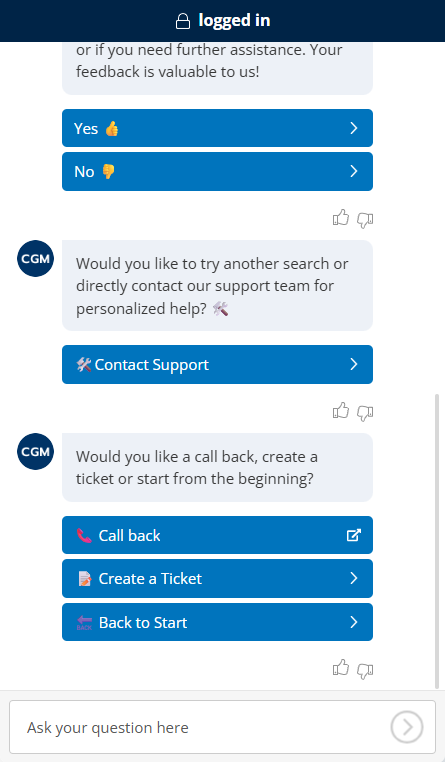
Once the ticket is successfully created, the link to the ticket will be displayed in the portal, allowing you to navigate to the ticket.

8. Typing in Messages
You can enter a message into the chat at any time.
9. Closing the Chatbot and Feedback
End the CGM Chatbot and give us feedback on whether your issue was resolved.
