Searching for and filtering Cases
Overview
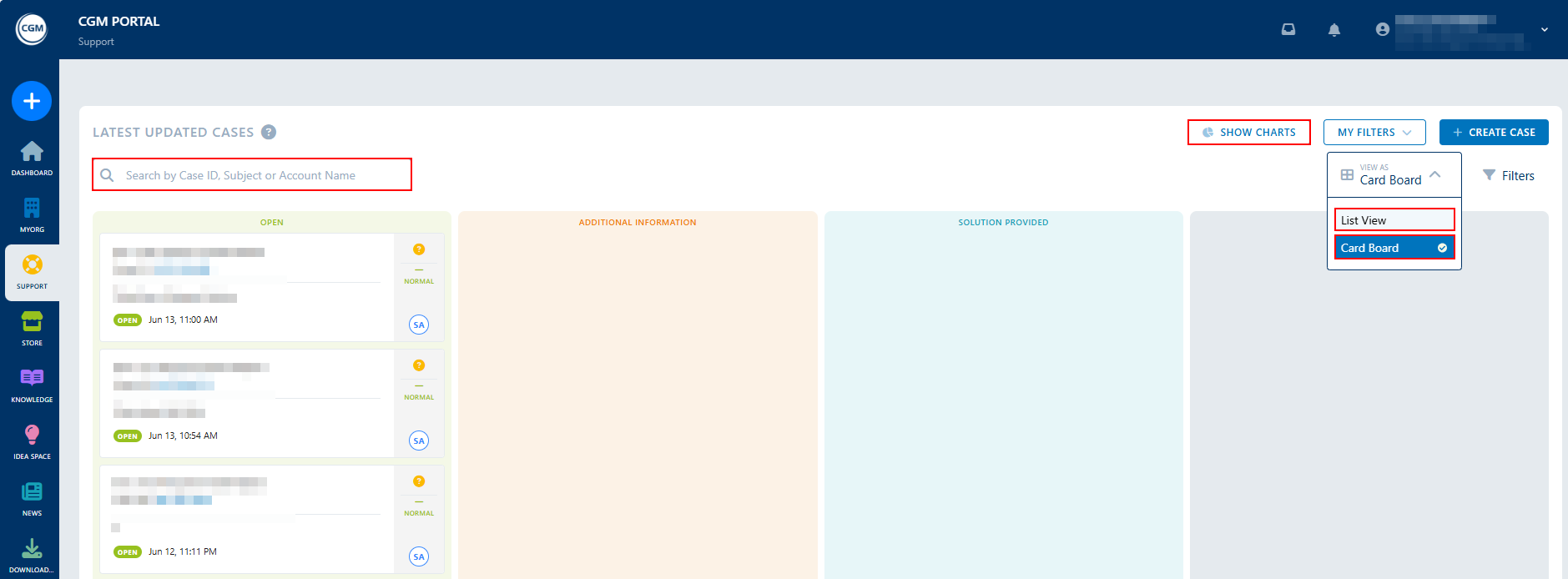
You can search for and access a case either via
- Search field
- View As
- Card board (Kanban): displays the last 5 updated Cases per status column
- List view: displays a list with all your created Cases
- Show Charts
- Cases By Status: display the Cases filtered by the respective status.
- Cases By Priority: display the Cases filtered by the respective priority.
Searching for a case
If you are looking for a specific case, you can search for it by case ID, subject, (or Account name, where applicable).
1. In the CGM PORTAL, go to the SUPPORT menu.
2. In the Search field, enter the search term, i.e. the case ID, subject, (or Account name, where applicable).
3. Press the Enter key.
To reset the search, delete the search term and press the Enter key.

Filtering cases
Both available views provide the possibility to filter the Cases based on filter criteria.
To filter the cases, proceed as follows:
1. In the CGM PORTAL, go to the SUPPORT menu.
2. Click Filters.
3. Select the required filter values.
Note: It is possible to select more than one value in each drop-down menu.
4. Click Apply.

Saving filters
You can save certain filters or filter combinations for a regular use. These can be edited and deleted afterwards.
To save a filter, proceed as follows:
1. In the CGM PORTAL, go to the SUPPORT menu.
2. Click Filters.
3. Select the required filter values.
Note: It is possible to select more than one value in each drop-down menu.
4. Click Save.

5. In the pop-up, enter a descriptive title for your filter.
6. Click either Save or Save And Apply.
Note: Saved filters will not be visible to other users.
Using saved filters
You can access your previously saved filter as follows:
1. In the CGM PORTAL, go to the SUPPORT menu.
2. Click My Filters.
3. Select the filter you want to apply.

Marking a filter as default
You can mark a certain filter as default. Default filters are applied automatically every time you enter the SUPPORT dashboard.
To mark a filter as default, proceed as follows:
1. In the CGM PORTAL, go to the SUPPORT menu.
2. Click My Filters.
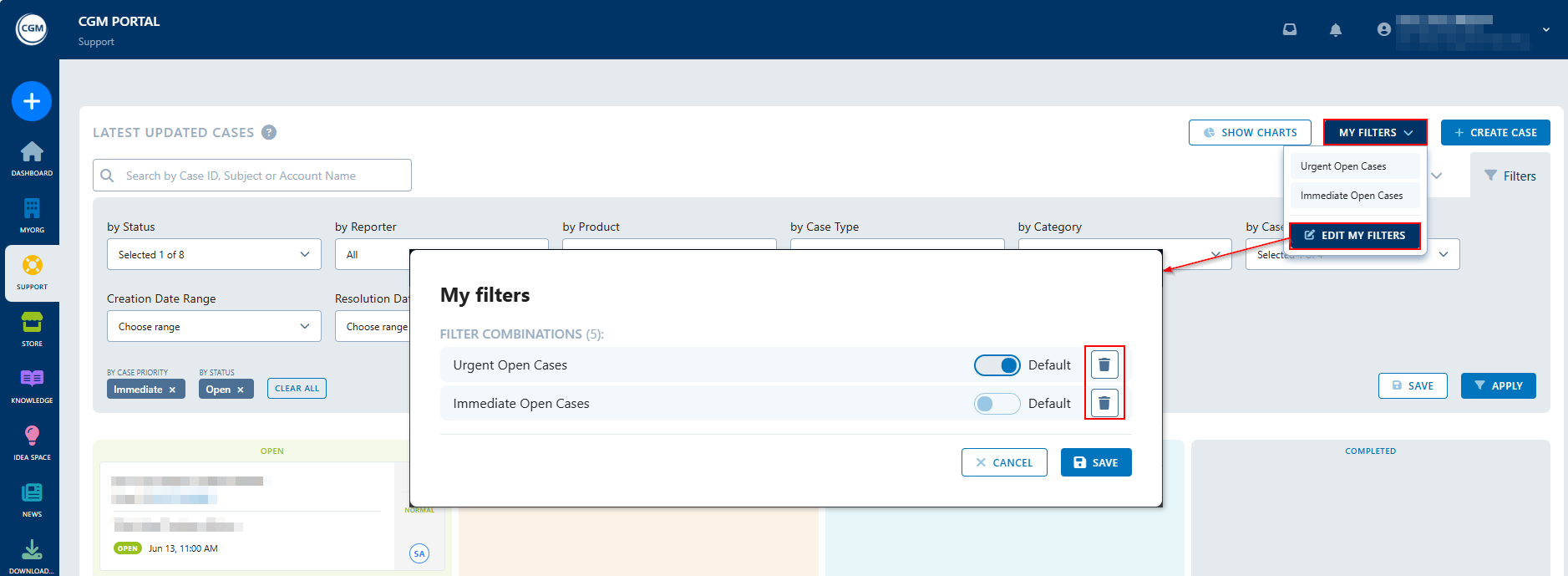
3. Click Edit My Filters.
4. For the filter that should be your default filter, activate the Default slider on the right side of the pop-up.

Deleting a filter
To delete a certain filter, proceed as follows:
1. In the CGM PORTAL, go to the SUPPORT menu.
2. Click My Filters.
3. Click Edit My Filters.
4. For the filter that should be deleted, click the trash can icon on the right side of the pop-up.
Displaying Case Details
There are different options to display the details of a case.
1. In the Card View, click the respective tile of the case for which you want to display the details.
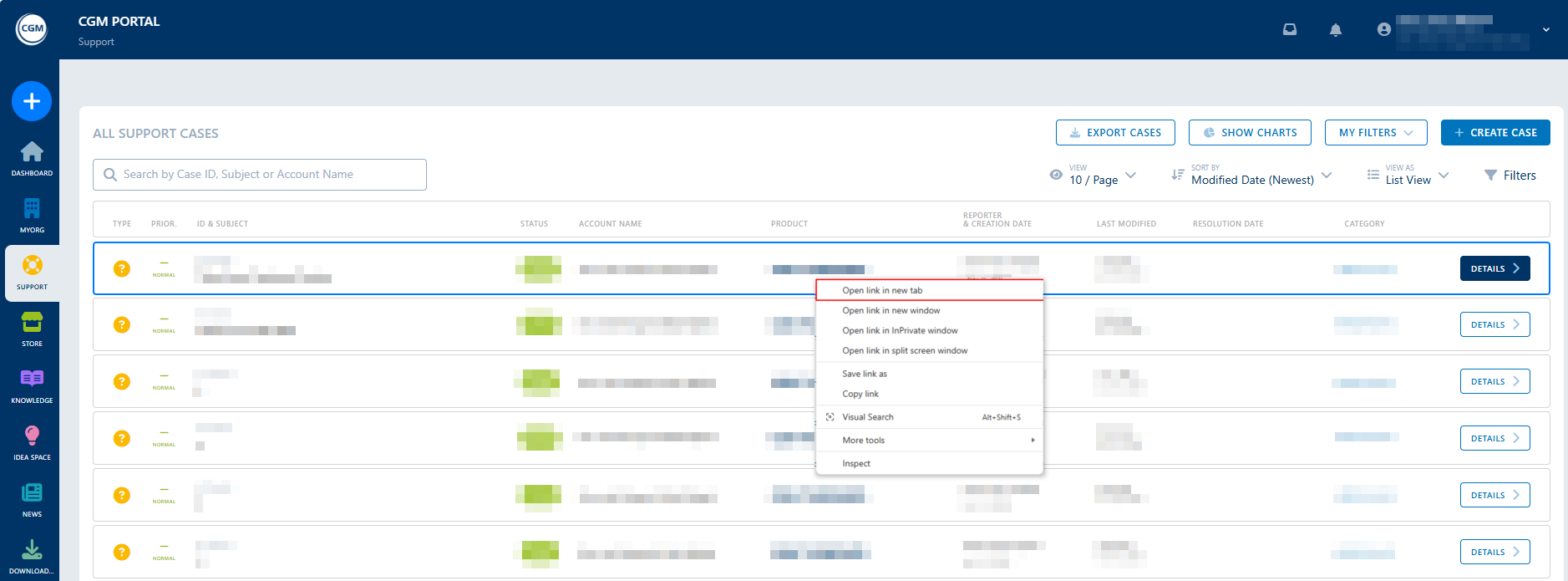
2. In the List View, click the respective row of the case for which you want to display the details.
In the List View, you can right-click a specific Case and select any option available in the context menu, such as to open the details in a new tab or in a new window.