Active Contracts
This guide explains how to request support for your active contracts directly in the CGM Portal. Through the “Request Assistance” function you can create a support case that is sent directly to CGM Support – optionally linked to a specific contract.
Overview
With the contract feature you can:
- View all your active contracts in the My Organization area.
- Open an administration case for a selected contract or without a specific contract reference.
- Choose a topic (Invoice, Question, Cancellation, Change Payment Terms).
- Track the resulting administration case in the Support dashboard.
Request Assistance for Contracts
1. Go to menu MY ORG → tab "General" → tab "Active contracts".
2. In the "Active contracts" list, click the "Request Assistance" button for the relevant business unit / contract.

3. In the dialog, select one of the available topics from the Topic dropdown field: Choose one of the available topics: Invoice, Question, Cancellation or Change Payment Terms.

4. Under Contract selection, choose either No specific contract or Choose a specific contract.
5. If you selected Choose a specific contract, pick the relevant order from the list (e.g. Order Nr. 1816227264) and enter a short description of your request in the Note field (max. 500 characters).
6. Click FINISH REQUEST to submit the request.

7. After submitting, a confirmation message is displayed:Successfully sent support case. Use the buttons to either view the Case Details or to navigate to the SUPPORT Dashboard to see all your cases.

Tracking Your Contract Administration Case
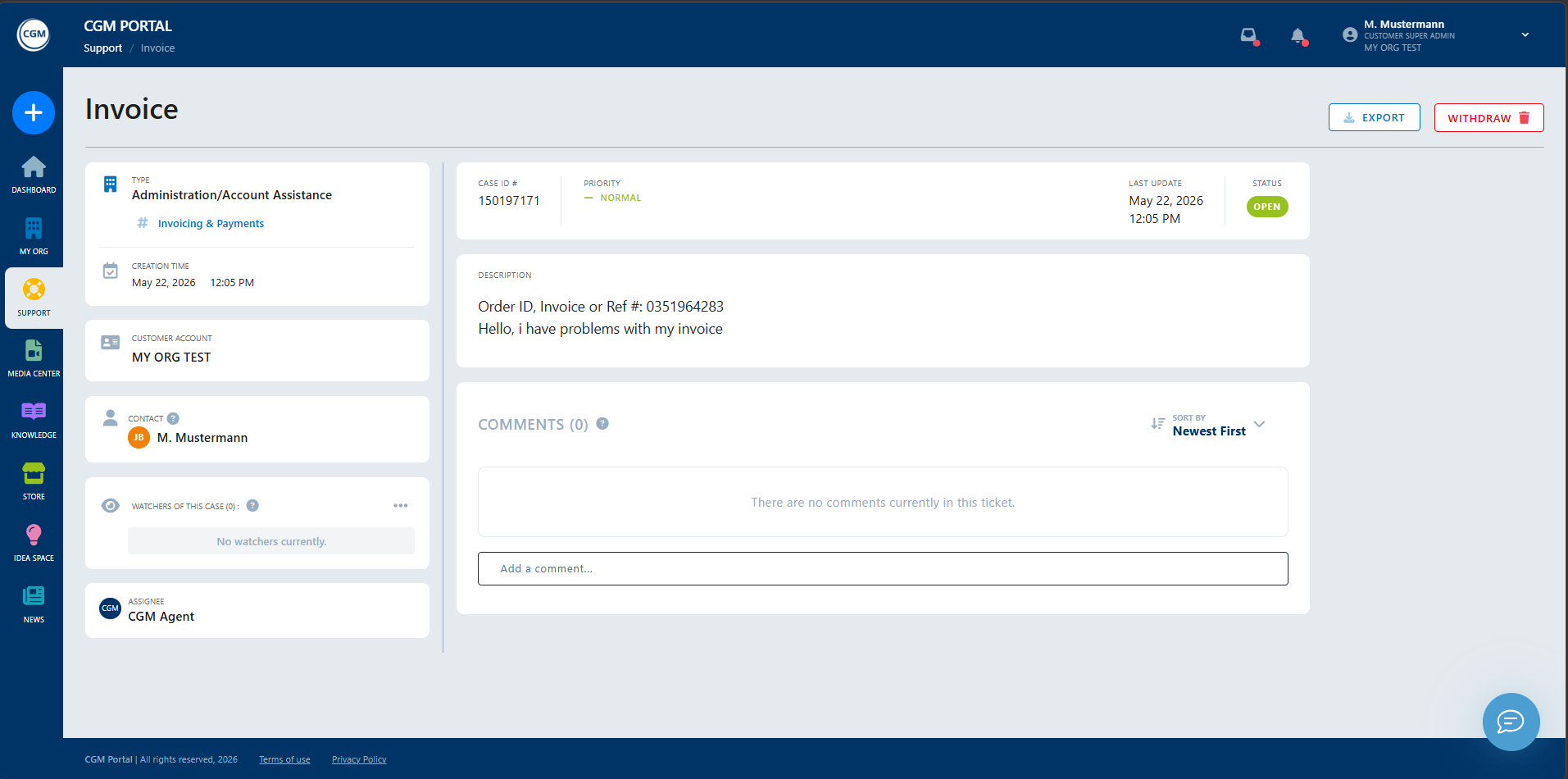
1. In order to see the status, priority, description and comments of your contract administration case, go to the SUPPORT menu and open your case.
2. In the case details, you can add a comment and use the buttons at the top on the right side to either Export the case or to Withdraw it.