

Knowledge Base
Overview
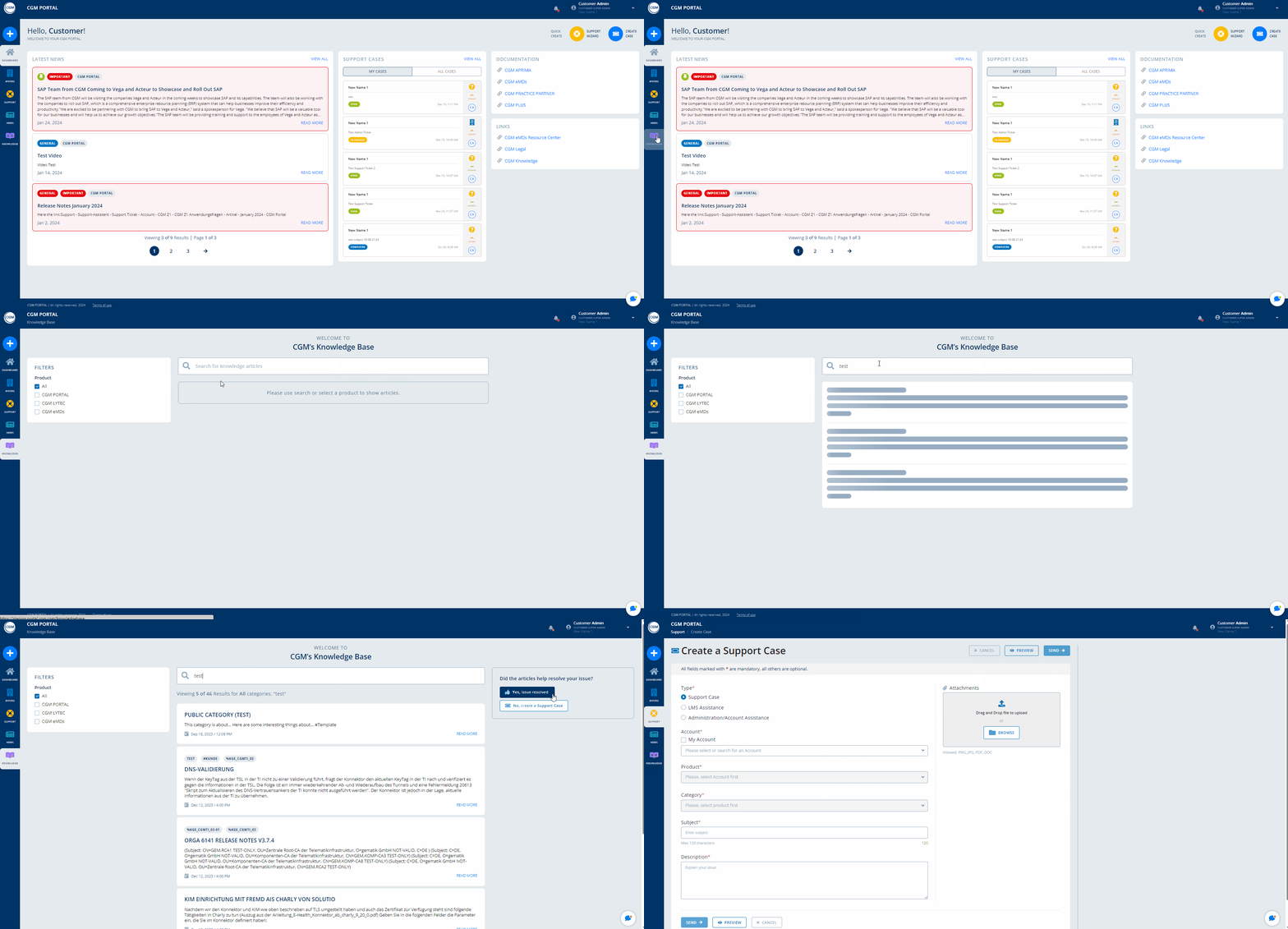
The dedicated Knowledge Base menu in the navigation bar shall enable you to quickly and easily search for knowledge base articles, e.g. regarding a certain CGM product or the CGM PORTAL itself.
Note: For some Products, this functionality might not be available. Furthermore, accounts with an "On Hold" status will not have access to the Knowledge Base.
Searching and filtering the Knowledge Base
You can enter a main term into the search field indicated by the magnifier icon to search for the information you need.
On the left side of the screen, the Filter section enables you to filter the Knowledge Base articles based on a certain product or a certain language. Activate the checkboxes of the Filters section according to your needs.

To display the full content of a knowledge base article, either click the title of the article or click on the "READ MORE" link at the bottom of an article.
Within the knowledge base article, three buttons are available on the right side:

If the knowledge base article provided the required information, click on the "Yes, issue resolved" button in the right sidebar.
If you did not find the required information, you can either
- click on the "No, create a Support Case" button.
This will open the Case Creation form so you can create a Support Case for your issue. The "Subject" field is pre-filled with the search term from the Knowledge Base. You can, however, adjust the subject for your Support Case, if necessary.
Maintain the fields, optionally upload an attachment, and submit your Support Case. - click on the "No, back to Knowledge Base" button to search for other articles.
Gif video demonstration:
Providing Feeback for Knowledge Article
You can provide feedback on knowledge articles by clicking the thumbs-up or thumbs-down icon at the bottom of the article.

Click the thumbs-up icon to let us know the article was helpful, or the thumbs-down icon to indicate that it wasn’t.
If you click the thumbs-down icon, a text field will appear where you can share written feedback on why the article didn’t meet your needs. This way, you help us improve the quality and relevance of our content.

Integration in Support Wizard
Once the Category has been selected during case creation process, you can enter a search term to search the integrated Knowledge Base for available documentation or troubleshooting articles.
The knowledge base articles are initially pre-filtered based on the product that you have selected before and also based on the language that is currently set up in the portal. However, you can adjust these filter criteria and search for articles based on other products or which are available in other languages. To do so, use the "Filters" section on the left side and activate/deactivate the checkboxes according to your needs.
The functionality of the available buttons and links works similarily as in the "KNOWLEDGE" menu itself. See also section "Searching and filtering the Knowledge Base" above.

Integration in Case Creation form
Once you have selected the product, the "Browse CGM's Knowledge Base" section becomes visible in the sidebar on the right.
Here, you can directly enter a search term to search for the required information before submitting the Support Case.
The available knowledge base articles are pre-filtered based on the product that you have selected in the form.
If you enter a subject, this subject will be automatically used to search the Knowledge Base.
The functionality of the available buttons and links works similarily as in the "KNOWLEDGE" menu itself. See also section "Searching and filtering the Knowledge Base" above.
